Current Page:
 Hot Products
 Mac Video Tools
  Mac Audio Tools
  Mac Discount Packs
  For Windows User
 Apple has make it difficult to copy or transfer the songs, music, audio, videos and files that stored on iPhone to iPhone, or transfer computer to iPhone, as well as transfer iPhone to computer for the protected copyrights on iPhone videos, music. But sometimes we really need the iPhone to iPhone Transfer software, and the computer to iPhone Transfer software to help us to do all those operations. Aiseesoft iPhone Transfer can do it. Then, I will give you the description on how to use this iPhone Transfer.
Note: iPod and iPhone have the same function in the field of multimedia, this iPhone Transfer is also applied to iPod.
Instruction: Download and install iPhone Transfer.
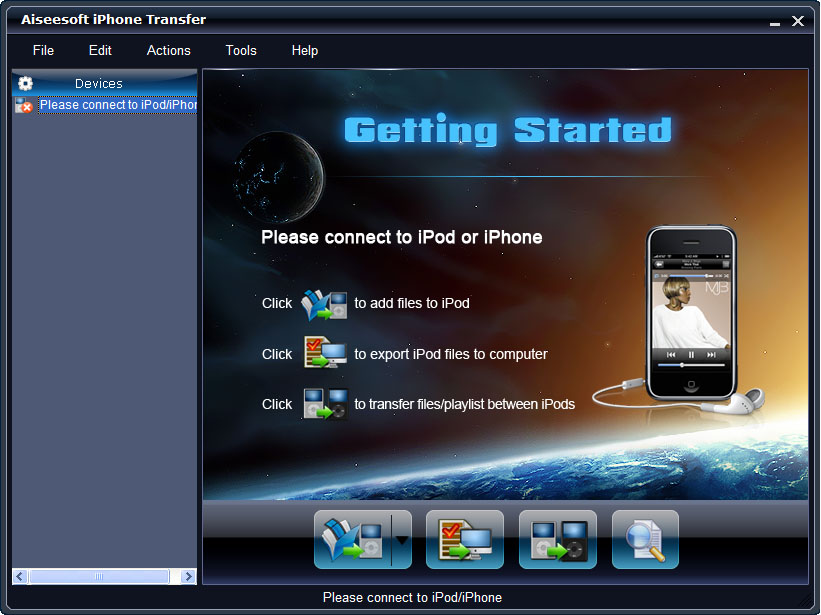
One usage: Transfer files from Phone to iPhone
Step One: Run the software, and connect two iPod/iPhone to your computer via USB cable.
Step Two: Open the library/playlist that you want to export files. Pick the files that you need to transfer.
Step Three: Click it will show you the folder of another iPod that you want to transfer to. Click OK. The transfer can be finished automatically.
Two usage: Transfer Computer to iPhone
Step One: Run the software, and connect your iPod/iPhone to your computer via USB cable.
Step Two: Click to seek the files or folders that you want to import to iPod and click OK. The process of importing will be finished instantly.
Three usage: Transfer iPhone to computer.
Step One: Run the software, and connect your iPod/iPhone to your computer via USB cable. After done, the iPod/iPhone icon and its library and playlists will appear in the Device list.
Step Two: Open the library/playlist that you want to export files, and then check the file(s) you want to export in the file list.
Step Three: Click to select the destination of the exporting files and start exporting files.
Otherwise, you could also choose the Export to local option from the Actions menu, and then export the files from your iPod/iPhone to actual device.
to select the destination of the exporting files and start exporting files.
Otherwise, you could also choose the Export to local option from the Actions menu, and then export the files from your iPod/iPhone to actual device.
Tip: Click to use "Track Filter" function to help you quickly browse your library by genre, artist and album.
- How to Download Videos from YouTube
- How to Transfer Music from iPod to Computer
- How to put Video on iPod
- How to convert .Mod files
- How to convert Videos
- Convert Video for Sansa Fuze
- How to convert YouTube video files to PSP
- Convert Video to MP4 on Mac
- How to download Limewire Video to iPod
- How to watch iPod Video on large screen TV
- Learn More Article and Guide